1. Export a CSV marker file from Pix
Open the comments panel on the right side in Pix. Press the three dots and select "Export". Now you can then download the CSV file from Pix.

The timecode in Pix starts with 00:00:00:00 for each clip, so you may need to use the offset function on EditingTools.io to sync it with you timeline or move it manually in your NLE (editing software).
2. Use the "マーカコンバーター" to convert the CSV marker file into a CSV file
Open the free マーカコンバーター, select "Pix Systems > Comments (.csv)" and set "convert" to "CSV for Google Sheets". Generate and download the file. ファイルの変換で問題が発生した場合は、無料のサポートにお問い合わせいただけます。
3. Import the CSV file into Google Sheets
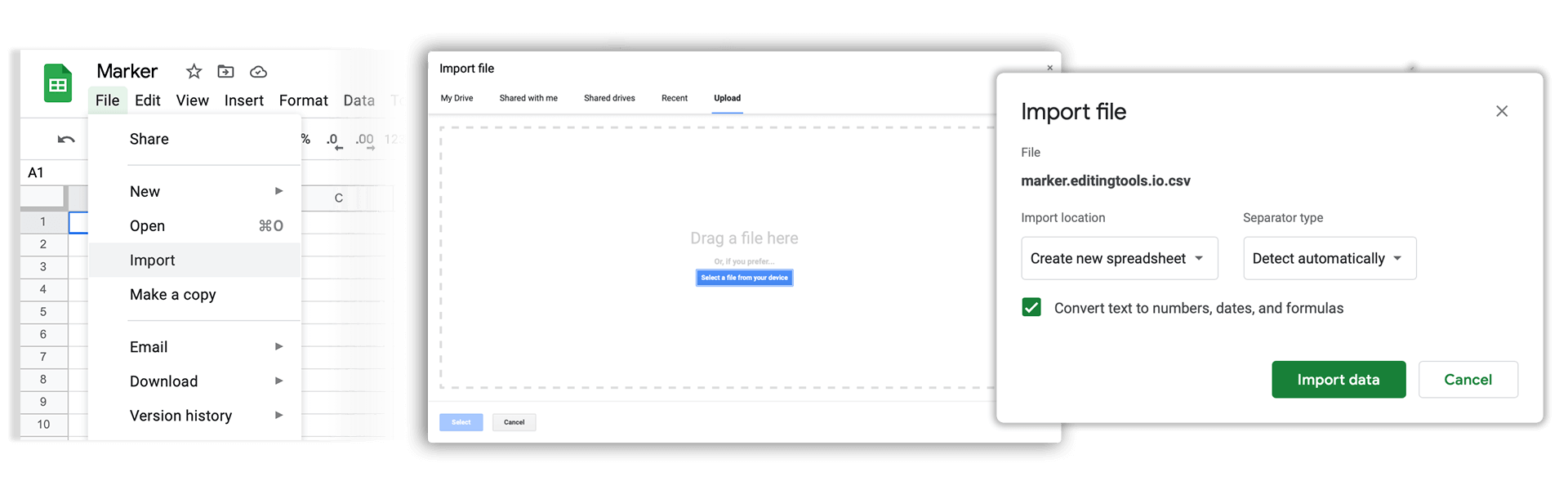
Open Google Sheets and go to "File -> Import". Upload the generated CSV file and press "Import Data" to generate the Sheet with all markers.
🚀 完了
以上です!このチュートリアルが役に立ったら、ぜひシェアして応援してください。ワークフローの改善案があれば、ぜひお知らせください!