FCP 7 Project Converter

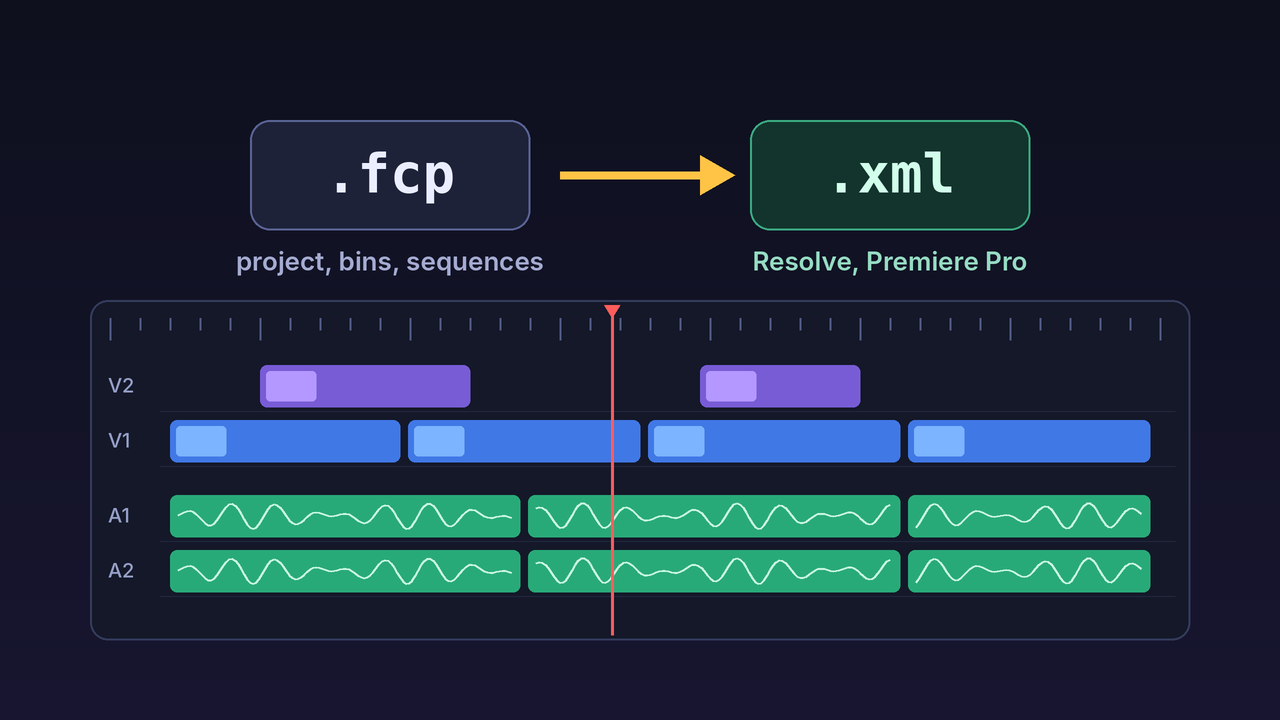
Convert Final Cut Pro 7 projects (.fcp) to XML for DaVinci Resolve and Adobe Premiere Pro. No Final Cut Pro needed.

ここにファイルをドロップするか、クリックして選択Final Cut Pro 7 project (.fcp), up to 500 MB per project
Up to 20 projects at once, 50 per day.
Output
Destination
The app you will open the XML in. It sets the recommended output and clip history below, and the import steps in the report.
Convert
One XML with the whole project (bins, sequences, clips), every sequence as its own XML, or both. The destination sets the recommended choice.
Final Cut Pro 7 stores which clips an item was made from (itemhistory). Resolve and Premiere Pro do not use it: turn it off for smaller files.
Extra files
The sequences with frame rate, size, tracks, clips and duration, and the drives the media was on.
Every media file of the project with its path, frame rate, duration and start timecode, e.g. to find the footage in an archive.
Media paths (optional)
Replace media path
The beginning of the media paths as they are in the project, e.g. /Media Drive/Footage. The report shows the drives and folders.
with
Where the media is now, e.g. /Volumes/RAID/Footage or D:\Footage. Leave both fields empty to keep the paths.
🔒 Login & Convert for free
The converter is free. To prevent bots from blocking the service, you need to log in.
FCP 7 Project Converter

進行中
✔ No Final Cut Pro needed
✔ For DaVinci Resolve & Premiere Pro
✔ Free with an account

What comes across

Converted

  • Sequences, bins and nested sequences
  • Clips with their in and out points and timeline positions, on all video and audio tracks
  • The links to your media files, ready to relink
  • Markers, clip names, labels and logging notes
  • Simple transitions and effects: dissolves, basic motion, opacity, speed changes

Check after import

  • Effects of third-party plug-ins and filters that only Final Cut Pro has
  • Multiclips (multicam edits): they are not written as multiclips
  • Titles and other generators: their look may differ

Works with projects of Final Cut Pro 7 and older versions, including projects from PowerPC Macs.

Final Cut Pro X libraries and .fcpxml files are a different format. Use our FCPXMLD Converter for those.

Open the XML in your editing app

DaVinci Resolve

  1. Create a new, empty project, so Resolve can take over the frame rate and resolution of the sequence.
  2. Choose File > Import > Timeline and select the .xml. With one XML per sequence, repeat this for every timeline you need.
  3. In the import window, leave "Automatically set project settings" and "Automatically import source clips into media pool" ticked.
  4. Clips shown as offline: select them in the media pool, right-click, choose "Relink Selected Clips" and pick the media folder.

Adobe Premiere Pro

  1. Choose File > Import and select the .xml, or drag it into the Project panel.
  2. Premiere creates a bin named after the file, with the sequences, bins and clips of the project.
  3. Clips shown as offline: select them, right-click, choose "Link Media" and locate one file. Premiere finds the others in the same folder.

If you know where the media is now, fill in "Replace media path" before converting and the clips link right away. Not sure which drives the project used? Turn on the project report or the media list.

Your project and the results

The project is converted on our own servers, no other service is involved. The uploaded .fcp file is deleted when the conversion is finished. The results stay on your Process page for 7 days.

One XML is downloaded directly. Several files (several projects, sequence XMLs, report, media list) come as one zip, and more than 25 sequence XMLs of one project are packed into their own zip.

Free with an account: up to 20 projects per upload, 500 MB per project and 50 projects a day. PRO: no daily limit, and your projects are converted first.

Prefer to convert offline?

Exhume is a desktop app for macOS, Windows and Linux that converts Final Cut Pro 7 projects on your own computer, without uploading them. It is open source, and our converter uses its conversion engine (MIT licence).

Exhume is made by a third party. editingtools.io is not affiliated with or connected to Exhume or its developer.