1. Export an Avid DS (Subcap) subtitle file from Avid Media Composer
Move the position indicator to any instance of the SubCap effect in the sequence, and ensure that the track containing the effect is selected. Open the Effect Editor, for example, by clicking the Effect Mode button. In the Caption Files parameter category, click Export Caption Data. Navigate to the location where you want to store the exported file. In the File name text box, enter the name for the caption file. From the Files of type menu (Windows) or the Enable menu (Macintosh), select the caption file format Avid DS (for the Avid Subcap file). In Tracks to Export, select the caption tracks from which you want to export data.
2. Use the "字幕ツール&コンバーター" to convert the Avid DS (Subcap) subtitle file into a CSV file
Open the free 字幕ツール&コンバーター, select "Avid DS (Subcap)" and set "convert" to "CSV for Google Sheets". Generate and download the file. ファイルの変換で問題が発生した場合は、無料のサポートにお問い合わせいただけます。
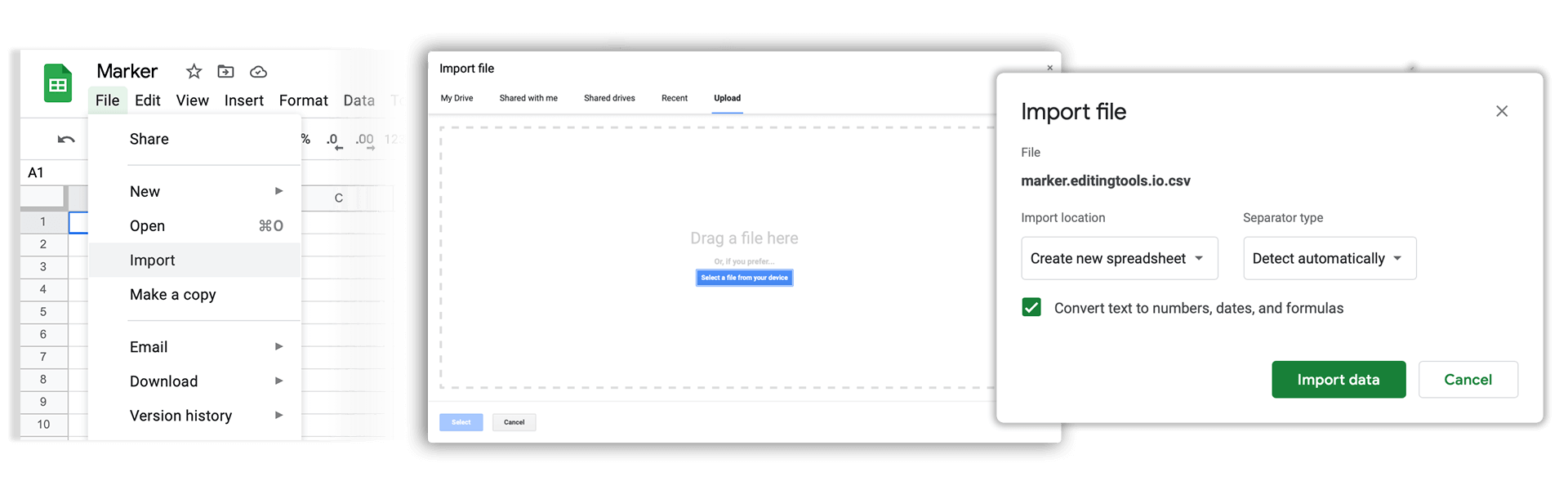
3. Import the CSV file into Google Sheets
Open Google Sheets and go to "File -> Import". Upload the generated CSV file and press "Import Data" to generate the Sheet with all markers.
🚀 完了
以上です!このチュートリアルが役に立ったら、ぜひシェアして応援してください。ワークフローの改善案があれば、ぜひお知らせください!