1. Export an EDL marker file from DaVinci Resolve
- Select the sequence in your media tab.
- Make the right click on the sequence timeline in your media tab and it will open the popup.
- Navigate to: "Timeline > Export > Timeline Markers to EDL"
2. Use the "マーカコンバーター" to convert the EDL marker file into a CSV file
Open the free マーカコンバーター, select "DaVinci Resolve > Sequence (.edl)" and set "convert" to "CSV for Apple Numbers". Generate and download the file. ファイルの変換で問題が発生した場合は、無料のサポートにお問い合わせいただけます。
3. Import the CSV file into Numbers
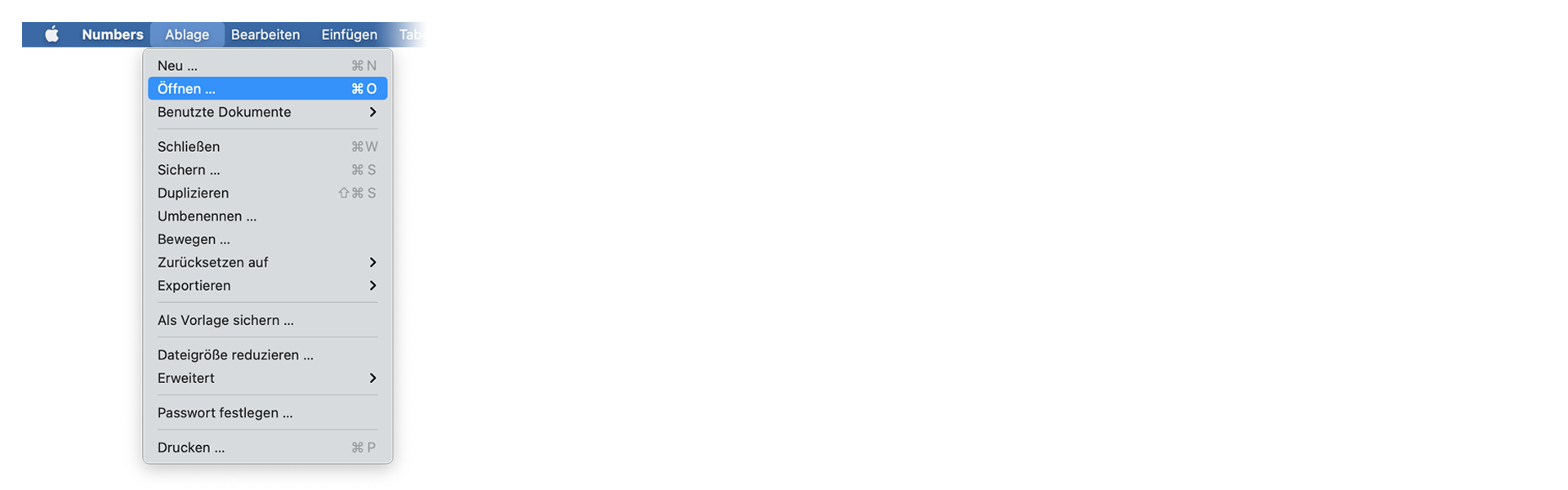
Open Numbers and go to "File -> Open". Simply open the CSV file.
🚀 完了
以上です!このチュートリアルが役に立ったら、ぜひシェアして応援してください。ワークフローの改善案があれば、ぜひお知らせください!