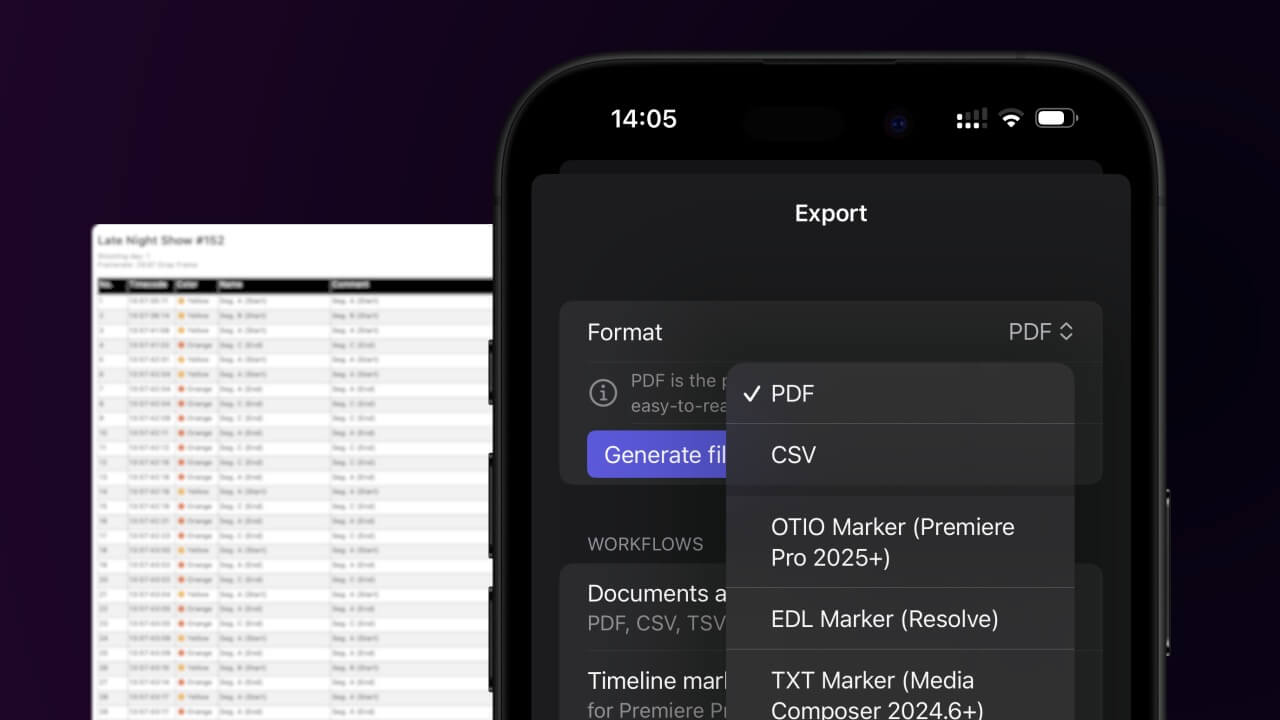
1. Export a CSV file from Live Timecode Notes app
Open the project in the app, then select "Export Notes" from the top menu. Select "CSV". Generate and save the file.
2. Use the "マーカコンバーター" to convert the CSV file into a YouTube Chapter Markers (.txt) file
Open the free マーカコンバーター, select "CSV" and set "convert" to "YouTube Chapter Markers (.txt)". Generate and download the file. ファイルの変換で問題が発生した場合は、無料のサポートにお問い合わせいただけます。
Ensure that the CSV file contains columns labelled "Timecode In", "Name" and "Comment". Otherwise, it will not work. You can also add columns for 'Colour' and 'Timecode Out'.
3. Copy Chapter Markers into the video description
Open the generated .txt file. Copy and paste the newly generated markers into your video's description.
🚀 完了
以上です!このチュートリアルが役に立ったら、ぜひシェアして応援してください。ワークフローの改善案があれば、ぜひお知らせください!