1. Export a CSV file from Live Timecode Notes app
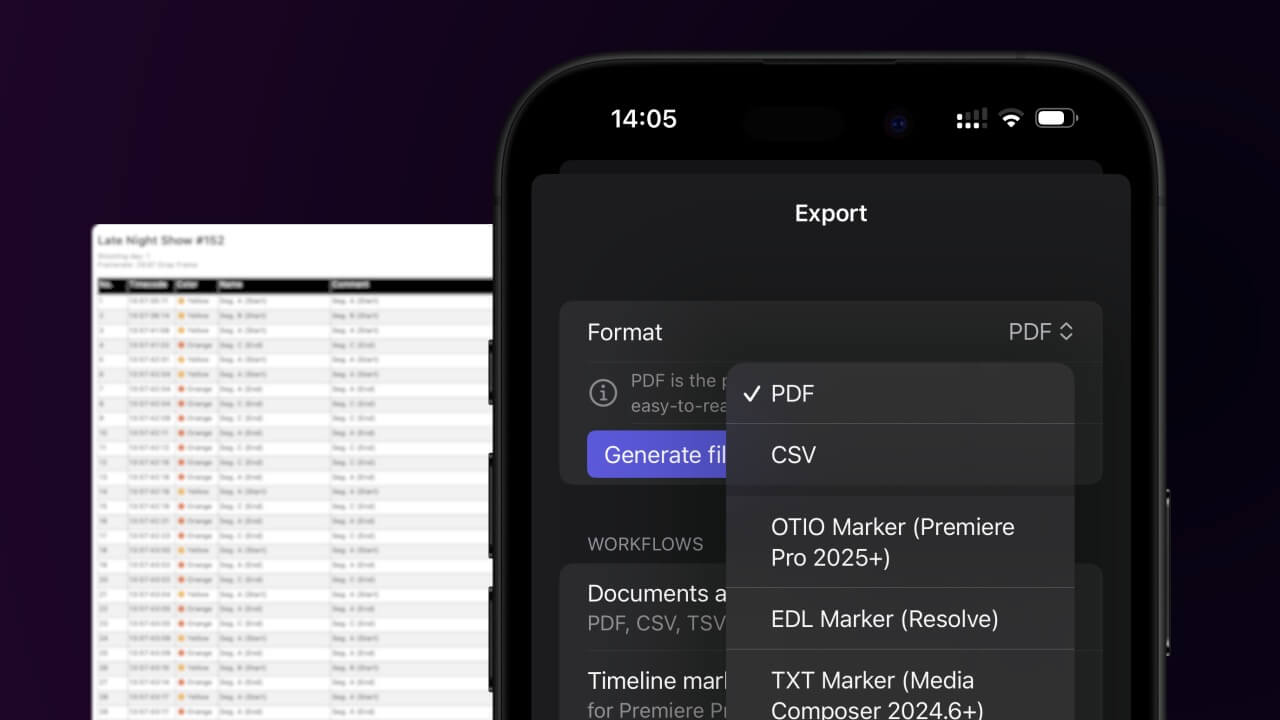
Open the project in the app, then select "Export Notes" from the top menu. Select "CSV". Generate and save the file.
2. Use the "マーカコンバーター" to convert the CSV file into a ptx marker file
Open the free マーカコンバーター, select "CSV" and set "convert" to "Pro Tools > PTX File (.ptx)". Generate and download the file. ファイルの変換で問題が発生した場合は、無料のサポートにお問い合わせいただけます。
Ensure that the CSV file contains columns labelled "Timecode In", "Name" and "Comment". Otherwise, it will not work. You can also add columns for 'Colour' and 'Timecode Out'.
3. Import the ptx marker file into Avid Pro Tools
To import markers go to "File -> Import -> Session Data". Select the ptx file and make sure to check the "Ruler Markers" box in the Session Data panel before pressing OK. Your markers should now be imported into our ProTools Session.
🚀 完了
以上です!このチュートリアルが役に立ったら、ぜひシェアして応援してください。ワークフローの改善案があれば、ぜひお知らせください!